Traefik
Protect services behind Traefik with Hanzo IAM auth (SSO).
Use Traefik with the traefik-iam-auth middleware to protect routes with Hanzo IAM authentication and SSO.
Prerequisites
- Traefik v2.x or v3.x installed and running
- A Hanzo IAM instance deployed and accessible
- Docker and Docker Compose (if using the containerized approach)
Step 1: Deploy Hanzo IAM
Deploy Hanzo IAM if needed. Then confirm:
- The Hanzo IAM server is running and accessible
- You can log in to the Hanzo IAM admin interface
- Test the login functionality by entering
adminand123
Step 2: Configure the Hanzo IAM application
-
Create or edit a Hanzo IAM application.
-
Add a redirect URL in the form:
http://<your-domain>/callbackFor example:
http://localhost:8080/callback -
Note down the following values from your application settings:
- Client ID
- Client Secret
- Organization Name
- Application Name
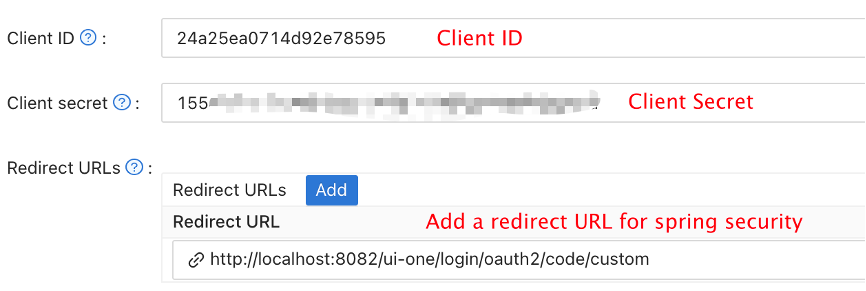
- Configure your application to use the appropriate authentication providers as needed.
Step 3: Deploy traefik-iam-auth Middleware
There are two ways to deploy the Traefik Hanzo IAM Auth middleware:
Option 1: Using Docker Compose (Recommended)
Create a docker-compose.yml file:
version: '3'

services:
  traefik:
    image: traefik:v2.10
    container_name: traefik
    restart: unless-stopped
    command:
      - "--api.insecure=true"
      - "--providers.docker=true"
      - "--providers.docker.exposedbydefault=false"
      - "--entrypoints.web.address=:80"
    ports:
      - "80:80"
      - "8080:8080"
    volumes:
      - /var/run/docker.sock:/var/run/docker.sock:ro
    networks:
      - traefik-network

  iam-auth:
    image: casbin/traefik-iam-auth:latest
    container_name: iam-auth
    restart: unless-stopped
    environment:
      - IAM_ENDPOINT=http://localhost:8000
      - CLIENT_ID=<your-client-id>
      - CLIENT_SECRET=<your-client-secret>
      - IAM_ORGANIZATION=<your-organization>
      - IAM_APPLICATION=<your-application>
      - CALLBACK_URL=http://localhost/callback
    labels:
      - "traefik.enable=true"
      - "traefik.http.middlewares.iam-auth.forwardauth.address=http://iam-auth:8080/verify"
      - "traefik.http.middlewares.iam-auth.forwardauth.authResponseHeaders=X-Forwarded-User"
    networks:
      - traefik-network

  # Example protected service
  whoami:
    image: traefik/whoami
    container_name: whoami
    labels:
      - "traefik.enable=true"
      - "traefik.http.routers.whoami.rule=Host(`localhost`)"
      - "traefik.http.routers.whoami.entrypoints=web"
      - "traefik.http.routers.whoami.middlewares=iam-auth@docker"
    networks:
      - traefik-network

networks:
  traefik-network:
    driver: bridge

Replace the placeholder values:

- `<your-client-id>`: Your Hanzo IAM application client ID
- `<your-client-secret>`: Your Hanzo IAM application client secret
- `<your-organization>`: Your Hanzo IAM organization name
- `<your-application>`: Your Hanzo IAM application name

Start the services:

```bash
docker-compose up -d

### Option 2: Using Binary Deployment

1. Download the latest release from the [traefik-iam-auth releases page](https://github.com/iam/traefik-iam-auth/releases).

2. Create a configuration file `config.yaml`:

```yaml
iam:
  endpoint: "http://localhost:8000"
  clientId: "<your-client-id>"
  clientSecret: "<your-client-secret>"
  organizationName: "<your-organization>"
  applicationName: "<your-application>"

server:
  port: 8080
  callbackUrl: "http://localhost/callback"

1. Run the middleware:

```bash
./traefik-iam-auth --config config.yaml

1. Configure Traefik to use the middleware. Add to your Traefik dynamic configuration:

```yaml
http:
  middlewares:
    iam-auth:
      forwardAuth:
        address: "http://localhost:8080/verify"
        authResponseHeaders:
          - "X-Forwarded-User"

  routers:
    my-protected-service:
      rule: "Host(`example.com`)"
      middlewares:
        - iam-auth
      service: my-service

## Step 4: Test the Integration

1. Access your protected service through Traefik (e.g., `http://localhost` if using the Docker Compose example).

2. You should be redirected to the Hanzo IAM login page.

3. Log in with your Hanzo IAM credentials.

4. After successful authentication, you will be redirected back to your protected service.

5. The middleware will set the `X-Forwarded-User` header with the authenticated user's information, which your backend service can use.

## Configuration Options

The traefik-iam-auth middleware supports the following environment variables:

| Variable | Description | Required |
|----------|-------------|----------|
| `IAM_ENDPOINT` | URL of your Hanzo IAM instance | Yes |
| `CLIENT_ID` | Hanzo IAM application client ID | Yes |
| `CLIENT_SECRET` | Hanzo IAM application client secret | Yes |
| `IAM_ORGANIZATION` | Hanzo IAM organization name | Yes |
| `IAM_APPLICATION` | Hanzo IAM application name | Yes |
| `CALLBACK_URL` | OAuth callback URL | Yes |
| `JWT_SECRET` | Secret for JWT token signing (auto-generated if not set) | No |
| `SESSION_TIMEOUT` | Session timeout in seconds (default: 3600) | No |
| `LOG_LEVEL` | Logging level: debug, info, warn, error (default: info) | No |

## Advanced Configuration

### Using HTTPS

For production deployments, it's recommended to use HTTPS. Update your Traefik configuration to include TLS:

```yaml
services:
  traefik:
    command:
      - "--entrypoints.web.address=:80"
      - "--entrypoints.websecure.address=:443"
      - "--certificatesresolvers.myresolver.acme.tlschallenge=true"
      - "--certificatesresolvers.myresolver.acme.email=your-email@example.com"
      - "--certificatesresolvers.myresolver.acme.storage=/letsencrypt/acme.json"
    ports:
      - "80:80"
      - "443:443"
    volumes:
      - ./letsencrypt:/letsencrypt

And update your service router configuration:

```yaml
labels:
  - "traefik.http.routers.whoami.entrypoints=websecure"
  - "traefik.http.routers.whoami.tls.certresolver=myresolver"

### Customizing Session Behavior

You can customize session timeout and other behaviors:

```yaml
environment:
  - SESSION_TIMEOUT=7200  # 2 hours
  - LOG_LEVEL=debug

## Troubleshooting

### Redirect Loop

If you experience a redirect loop:

1. Verify that the `CALLBACK_URL` matches the redirect URL configured in your Hanzo IAM application.
2. Check that cookies are enabled in your browser.
3. Ensure the middleware can reach the Hanzo IAM endpoint.

### Authentication Fails

If authentication fails:

1. Check that the `CLIENT_ID` and `CLIENT_SECRET` are correct.
2. Verify that the Hanzo IAM organization and application names are correct.
3. Check the middleware logs for detailed error messages: `docker logs iam-auth`

### 502 Bad Gateway

If you see a 502 error:

1. Ensure the iam-auth service is running: `docker ps`
2. Check that all services are on the same Docker network.
3. Verify the ForwardAuth address is correct in the Traefik configuration.

## Resources

- [Traefik Hanzo IAM Auth GitHub Repository](https://github.com/iam/traefik-iam-auth)
- [Traefik ForwardAuth Middleware Documentation](https://doc.traefik.io/traefik/middlewares/http/forwardauth/)
- [Hanzo IAM Documentation](/docs/services/iam)
How is this guide?
Last updated on